Mail- und Domainverwaltung
Mail and domain management in the dashboard
1. Dashboard overview
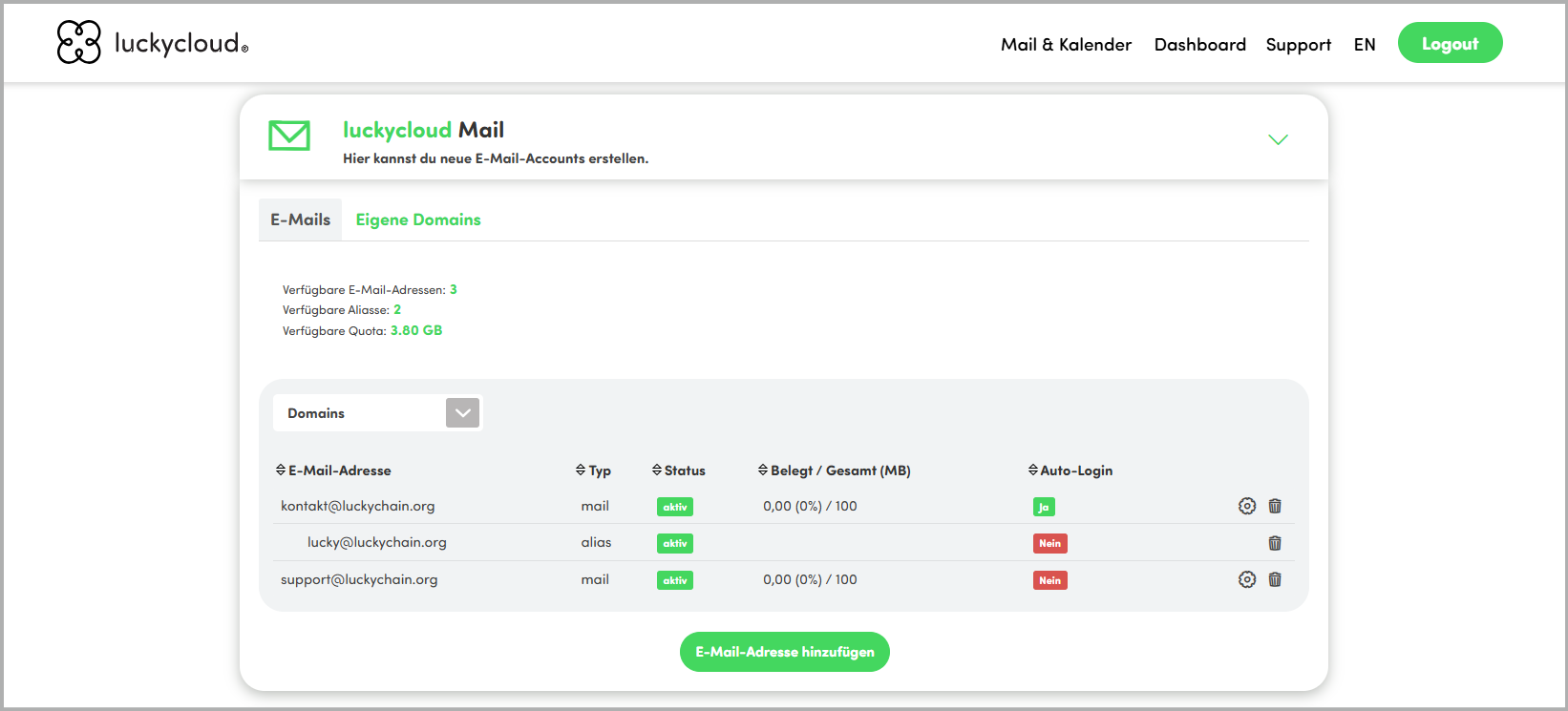
After creating your email address, you’ll be redirected to the luckycloud dashboard automatically. Here you’ll find an overview of your mailbox, storage usage, aliases, and domain settings.

2. Auto-login and security considerations
In the dashboard, you can decide whether auto-login should be enabled. Simply move the toggle in the “Mail & Calendar” box.
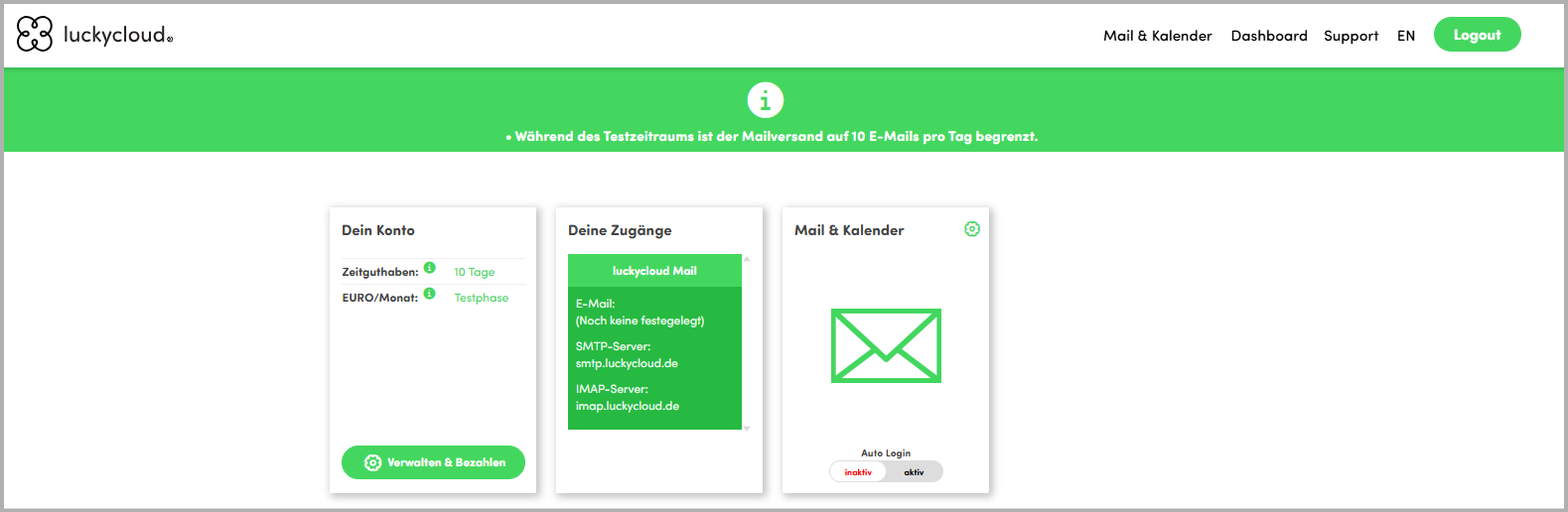
When auto-login is enabled, you’ll be taken straight from the dashboard to your mailbox—without having to enter your password again.
When does auto-login make sense?
- For personal use or individual users
- For devices that only you use
When is it better to disable auto-login?
- If multiple people have access to the device
- In business environments
- If administrators should not be able to view mailbox contents
Note: Auto-login is a convenience feature. For maximum security, we recommend disabling it on shared devices.
If you manage multiple email addresses, you can choose which address should be used for auto-login in the dashboard. Auto-login determines which mailbox opens immediately after signing in.
Only one email address per account can be set as the auto-login address at a time.
Here’s how: In your luckycloud Mail overview, click the gear icon and enable the checkbox to turn auto-login on and select the email address you want to use.
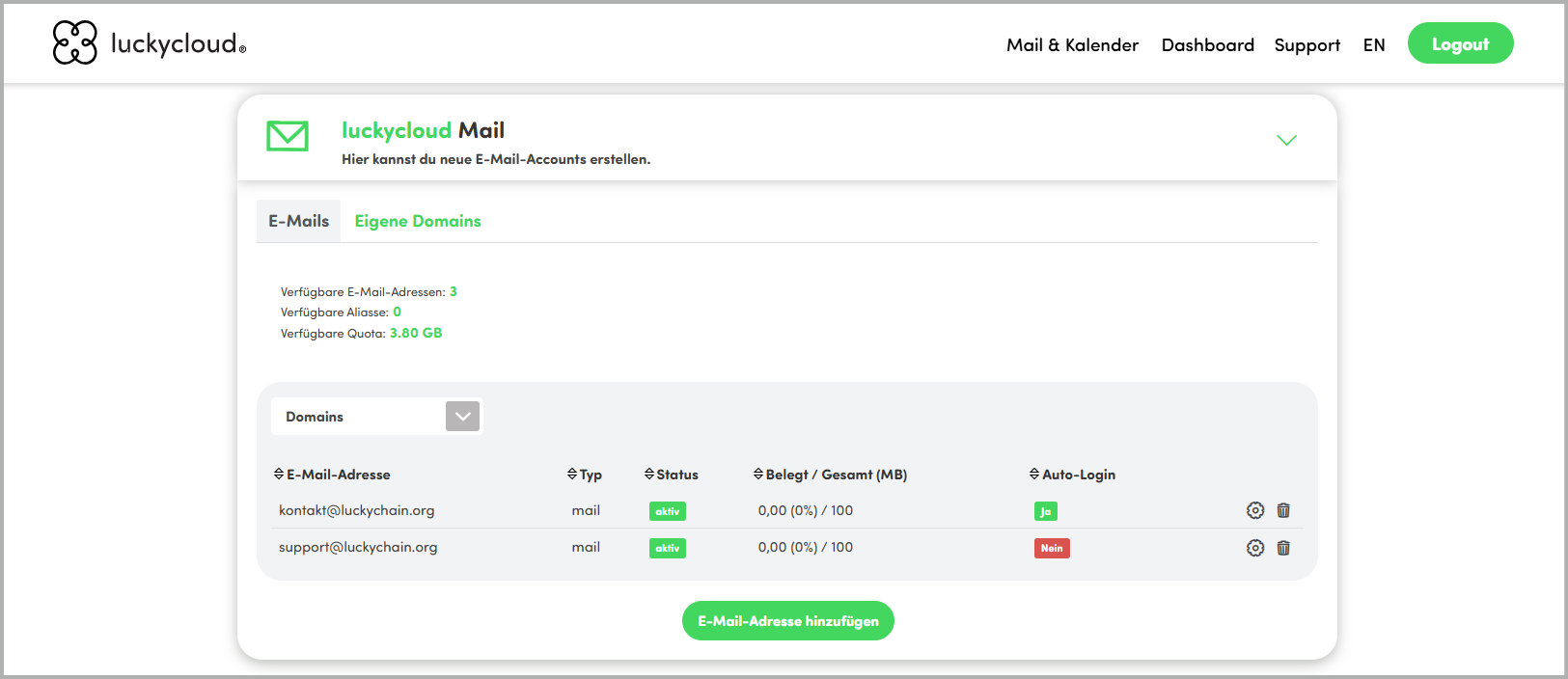
Security confirmation When you change the auto-login address, an automatic confirmation email will be sent to the newly selected address. The new address will only be activated for auto-login once you confirm it.
This extra safeguard helps prevent someone from setting a different email address for auto-login without authorization.
3. Add a new email address to your account
You can add additional email addresses at any time.
Step 1: In the dashboard, open „luckycloud Mail“

Step 2: Click “ Add email address".
Step 3: Enter the new email address and an external email address for setting up the password. Optionally, tick the checkbox to also send the password setup link to the account administrator.

Step 4: Your newly created email address will now appear in your dashboard overview.
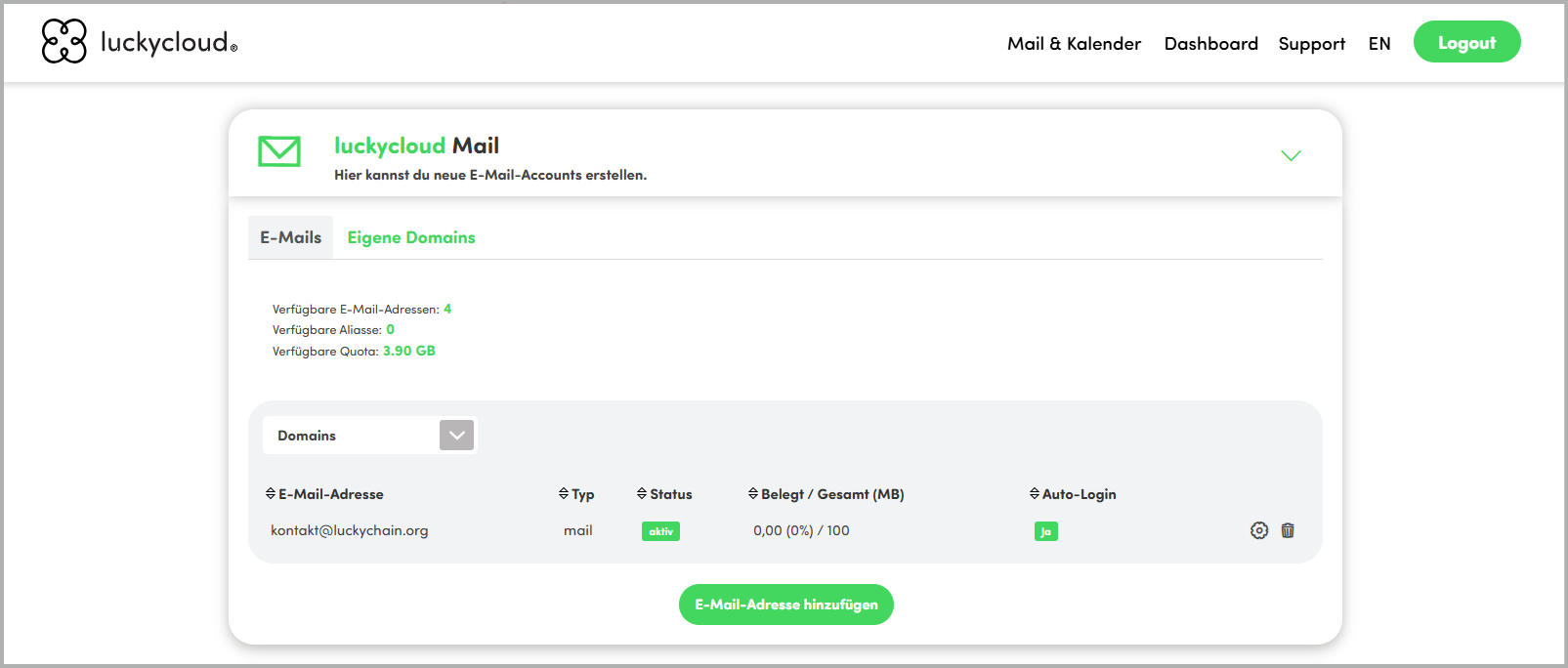
Step 5: Set a password for the new email address by following the instructions in the email sent to your external address.
Stept 6: In your overview, adjust whether and for which email address you want to use auto-login by clicking the gear icon and setting the checkbox accordingly.
4. Separate passwords for dashboard login and mailbox
Some users prefer separate passwords for the luckycloud dashboard and their mailbox—and luckycloud supports that. During setup or later under “Security”, you can change the password used for the dashboard.

5. Create new aliases from your account
An alias is an additional email address that points to an existing primary mailbox. Emails sent to the alias are automatically delivered to the primary inbox. Aliases don’t have their own mailbox, so they don’t require additional storage.
Aliases are ideal when you want to use multiple email addresses for different purposes without managing multiple mailboxes.
Typical use cases:
- Role-based addresses such as support@, kontakt@, or info@
- Project or campaign addresses
- Separating different communication purposes while using one central mailbox
- Protecting your primary email address from being shared too widely
When sending emails, you can select the alias as the sender while staying logged in with your main account. All emails are managed centrally in your primary mailbox.
An alias is an additional address without its own login and without its own storage.
A separate mailbox is an independent inbox with its own login, its own password, and its own storage quota.
An alias is a good choice when you need multiple addresses but want to manage just one mailbox. A separate mailbox makes sense when multiple people need to work independently or when separate access is required.
Use aliases if you want to manage multiple identities within one central mailbox—without increasing storage usage.
Creating aliases in luckycloud: step-by-step Step 1: If you haven’t already done so during setup, enable the “Aliasse” toggle under “Manage & Pay.”
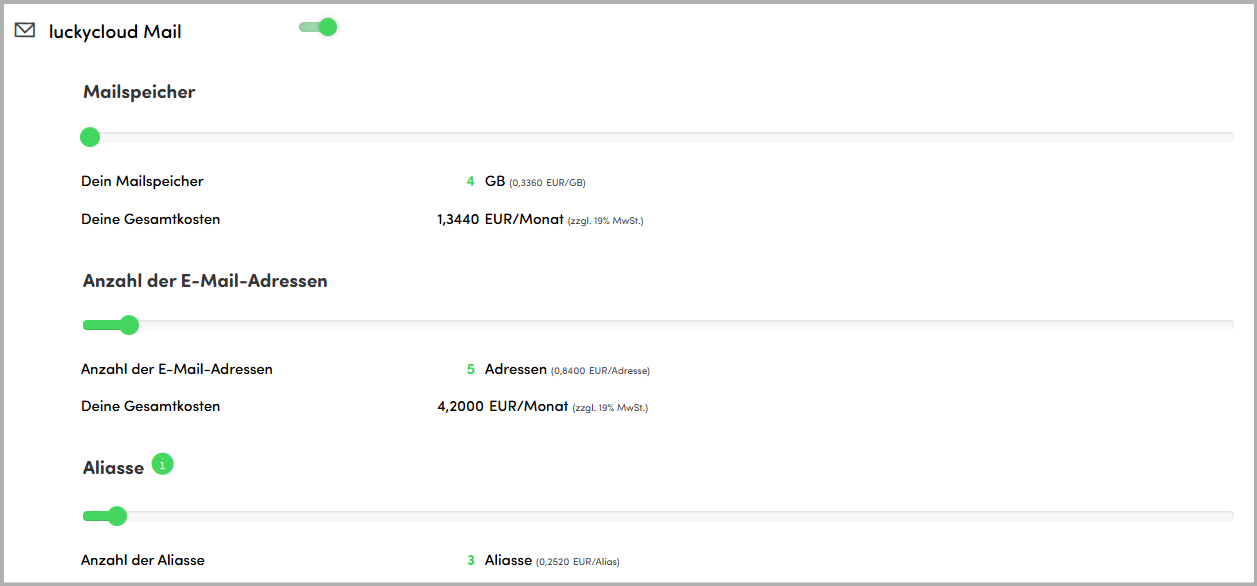
Step 2: Go to luckycloud Mail and click “Add email address.”
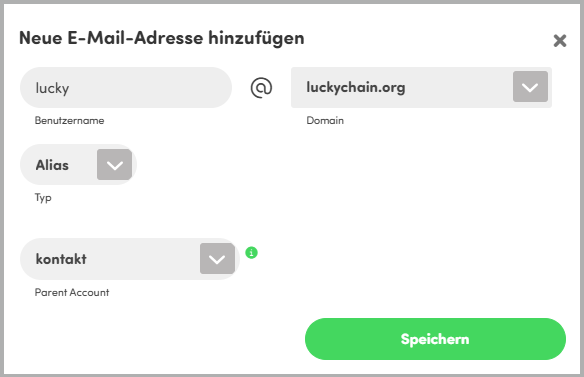
Step 3: Enter the desired username, choose the domain and the type “Alias,” select the primary account the alias should be assigned to, and click “Safe.”
Step 4: Your alias address will now appear directly below the corresponding primary address in the overview.